Agent Orchestration
Tools like Conductor, Cursor, Emdash, and Sculptor, the new agentic development environments, run coding agents in parallel, each in its own isolated git worktree or container. Connect Rampify and those same agents can do your marketing and SEO: research keywords, ship optimized pages, fix issues. This page covers the orchestration-specific setup.
Start with the Connecting page, which covers connecting Rampify via OAuth and the one-click picker. This page assumes that's done and focuses on running Rampify across parallel agents and multiple projects.
How it fits#
Your orchestrator runs the agents and keeps them isolated. Rampify gives each agent its marketing toolkit (over MCP) and the spec to work on. Whatever the orchestrator drives (Claude Code, Codex, or a tool's own model like Cursor's Composer), Rampify connects through MCP, so its tools show up inside it.
For the bigger picture on why you'd point coding agents at marketing, see Marketing & SEO for parallel coding agents.
Conductor#
Conductor runs coding agents in parallel git worktrees on macOS. Rampify plugs in two ways.
Open in Conductor#
Every spec in Rampify has an Open in Conductor button. One click opens a new Conductor workspace in the right repo with the task prompt already in the chat, pre-filled and ready to send.
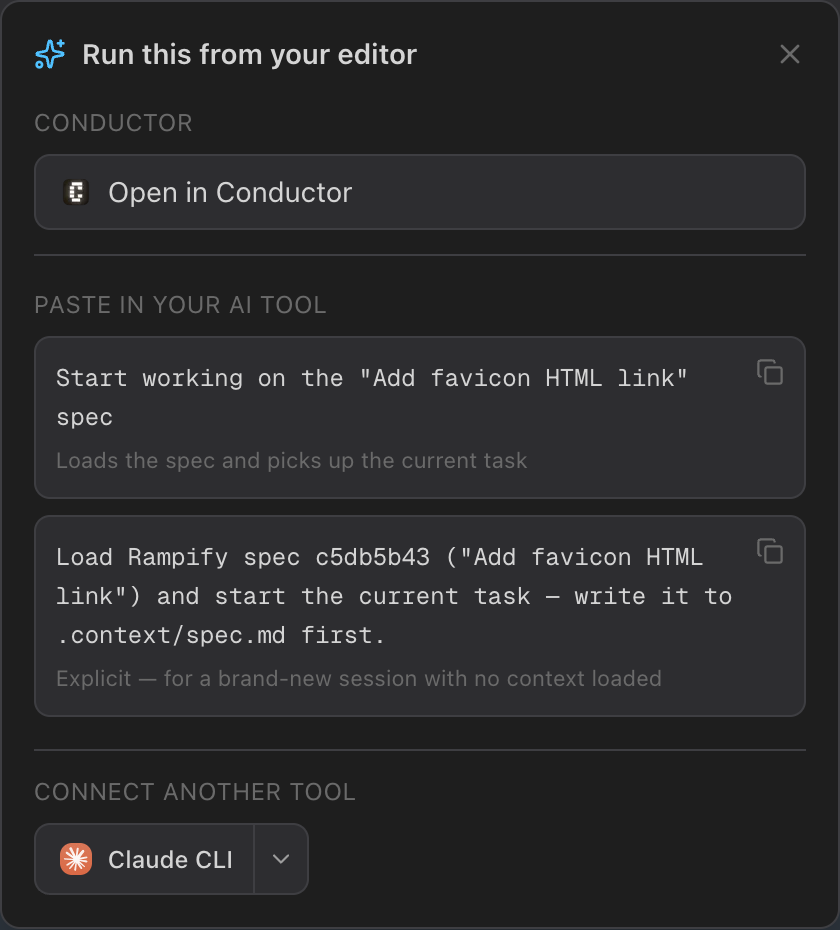
Set it up once per machine: in your project's Settings → Connect Conductor, paste the local path to that repo. The path is stored in your browser only, so you set it once on each machine you use.
Open in Conductor is in beta. If you don't see Connect Conductor in your project Settings yet, ask us to enable it, or use the inherited-MCP setup below, which works everywhere today.
Inherited MCP#
Conductor reads a repository's MCP config from its project root:
If a repository has an
.mcp.jsonfile at its project root, Conductor agents in that workspace inherit those MCP servers.
So if you add Rampify to a repo's .mcp.json, every agent Conductor runs in that repo's workspaces gets Rampify's tools automatically. The one catch (keeping that file out of git while still delivering it to every workspace) is the worktree pattern below.
Connect the agent your orchestrator runs#
If you connected Rampify through the OAuth picker, you're already done: skip to the worktree pattern. To wire it in by config (required for the worktree pattern, or for tools without OAuth), here's the per-tool setup. The Rampify MCP endpoint is https://www.rampify.dev/api/mcp.
Use a project-scoped API key (create one in your project's Settings → API keys) so the agent is bound to exactly one Rampify project (see Multiple projects).
Claude Code#
The agent most orchestrators drive. Add it via the CLI:
claude mcp add --transport http rampify https://www.rampify.dev/api/mcp
Or as a project-root .mcp.json (this is the file Conductor inherits):
{
  "mcpServers": {
    "rampify": {
      "type": "http",
      "url": "https://www.rampify.dev/api/mcp",
      "headers": { "Authorization": "Bearer sk_live_your_project_key" }
    }
  }
}
Cursor#
Add to .cursor/mcp.json (project) or ~/.cursor/mcp.json (global):
{
  "mcpServers": {
    "rampify": {
      "url": "https://www.rampify.dev/api/mcp",
      "headers": { "Authorization": "Bearer sk_live_your_project_key" }
    }
  }
}
Codex#
Edit ~/.codex/config.toml (or a project-level .codex/config.toml):
[mcp_servers.rampify]
url = "https://www.rampify.dev/api/mcp"
bearer_token_env_var = "RAMPIFY_API_KEY"
Codex reads the bearer token from the named environment variable, so export RAMPIFY_API_KEY with your project-scoped key.
Other tools#
Antigravity, Sourcegraph Amp, and other MCP-capable agents connect the same way: add Rampify's HTTP endpoint (https://www.rampify.dev/api/mcp) as an external MCP server using their configuration. See each tool's MCP docs for the exact format.
One setup for every workspace#
Conductor and other worktree-based tools create a fresh git worktree per workspace. Git worktrees don't copy gitignored files, so a .mcp.json holding your API key (which you should gitignore) won't be in new workspaces by default. Two steps fix it:
- Put Rampify in the repo's
.mcp.jsonwith a project-scoped key, and gitignore the file so the key never lands in git history. - Add
.mcp.jsonto a.worktreeincludefile at the repo root so Conductor copies it into every new workspace:
# .worktreeinclude — files Conductor copies into each new workspace
.env
.env.*
.mcp.json
.worktreeinclude uses .gitignore syntax; you can also configure this in Conductor under Settings → (your repo) → Files to copy. Now every parallel workspace inherits Rampify, scoped to the right project, with no per-workspace sign-in.
Never commit a file containing an sk_live_... key. Keep .mcp.json gitignored; .worktreeinclude delivers it to each workspace without it ever entering git history.
OAuth vs. a project-scoped key#
Both work; pick by workflow:
- OAuth (the one-click picker) is simplest for a single, interactive setup on one machine.
- A static project-scoped key in
.mcp.jsonis more robust for parallel worktrees, automation, and agencies. It avoids re-authenticating in every new workspace and removes the chance of picking the wrong project.
Multiple projects#
Rampify scopes all data by project, and a project-scoped key binds an agent to exactly one Rampify project. That maps cleanly onto how you already organize repos:
- One repo → one Rampify project. Put that project's scoped key in the repo's
.mcp.json. Every Conductor workspace for that repo, however many agents you run in parallel, operates on the right project. - An agency with many client repos gets many Rampify projects that never cross wires: each repo carries its own client's key, so an agent working Client A's repo can't touch Client B's data, even running side by side.
To check which project a connection is bound to, ask the agent to run the list_projects tool.
No MCP? Copy the prompt#
Using a tool we haven't covered, or not using MCP at all? Every spec in Rampify has a copy-ready prompt: paste it into any agent and it loads the spec and picks up the current task. No setup required, works with anything.
Related
MCP Server
Connect Rampify via OAuth or a key, the one-click picker, and the full tool reference.
Marketing & SEO for parallel coding agents
Why you'd point the agents you already run at marketing: the use cases.
Spec-Driven Development
How specs structure the work your agents pick up and ship.